Open My Library
- Open Settings.
- Under Tools, tap My Library.
- Tap the My Library chip to see only your own files. All also lists the files attached to your cases.
Plan: My Library uses the same cloud storage as case files, so it is available on plans that include storage.
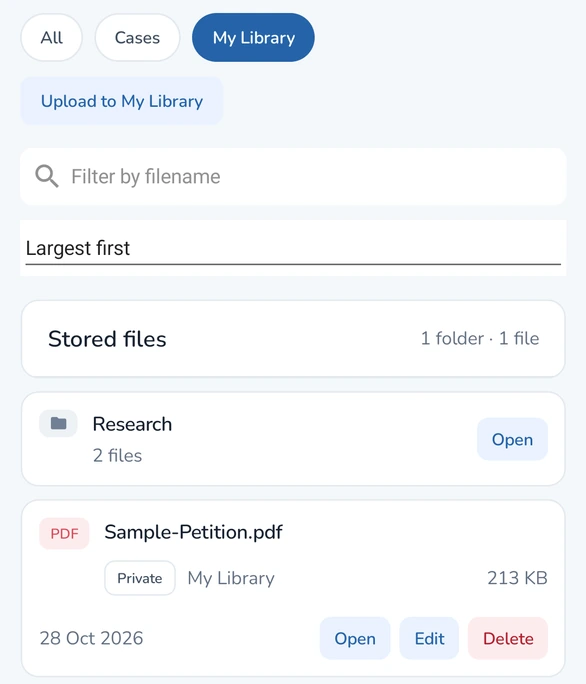
Add PDFs
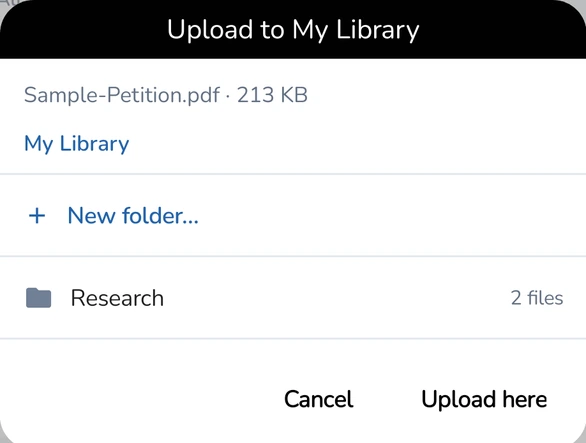
- Tap Upload to My Library and choose one or more PDF files.
- Choose a folder, or tap New folder…, type a Folder name, and tap Create.
- Tap Upload here.
On Android you can also add a PDF from another app, such as email or WhatsApp: share the file, choose Save to My Library, pick a folder, and tap Save here.
Only PDF files can be added.
Rename, move, or delete a file
- Tap a folder to open it. Tap the folder path at the top to go back.
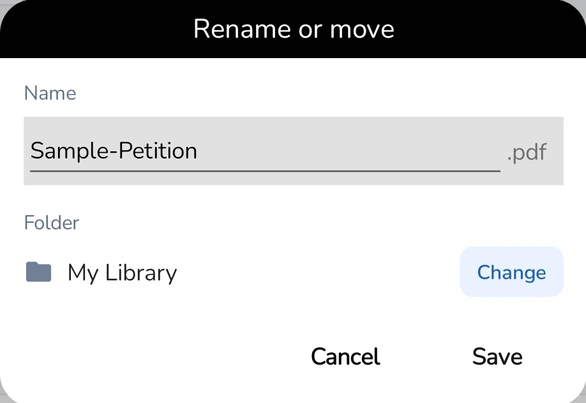
- Tap Edit on a file to open Rename or move.
- Change the Name, or tap Change next to Folder, pick a folder, and tap Move here.
- Tap Save.
To remove a file, tap Delete and confirm. Anything in NoteA that links to it then shows it as unavailable.
Share a file or keep it private
- Each file shows Private or Shared. Your files start private.
- Tap the chip and confirm to change it.
- A shared case file appears for the people you link the case's folder with.
- A shared My Library file can be viewed by the people who can open your shared NoteAs.
Open a file in NoteA
- Open NoteA for a case.
- Tap + beside the document tabs and open the My Library section.
- Open the file's folder, and tap + next to the file to open it beside your notes. When you have many files, Search My Library also appears.