Add a file to a case
- Open a case from a folder, search, or the cause list.
- Tap in the top title bar and select Add File.
- Choose one or more PDF files from your phone. Only PDF files can be attached.
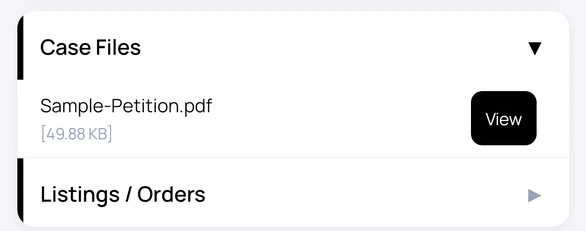
- Wait for the upload to finish. The files then appear with the case files, and you can tap View to open one.
If a file with the same name is already attached, you are asked whether to overwrite it. When you add several files and some are already there, choose Replace or Skip these.
A main case also lists the files of its applications and related cases, so everything for the matter is in one place.
Plan: case files use cloud storage, which is included in paid plans. The Free plan does not include storage.
Check and free up storage
- Open Settings. Your plan section shows how much cloud storage you have used.
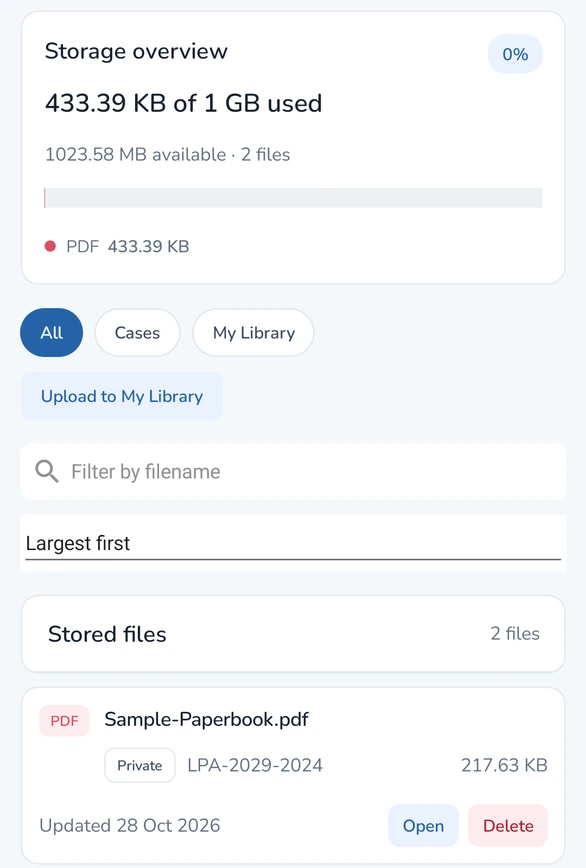
- Under Tools, tap My Library. It opens on All, which lists every stored file. Tap Cases to see only case files. In older app versions, expand your plan section and tap Cloud storage instead.
- Review the storage overview to see what uses the space.
- Use Filter by filename to find a file, or change the sort order (for example Largest first) to see what uses the most space.
- Tap Open to view a file or Delete to remove it.
Deleting a file is permanent and removes it from its case. Court Assistant asks you to confirm first. Files you keep in My Library use the same storage.