Search by CNR
- Open the Search tab.
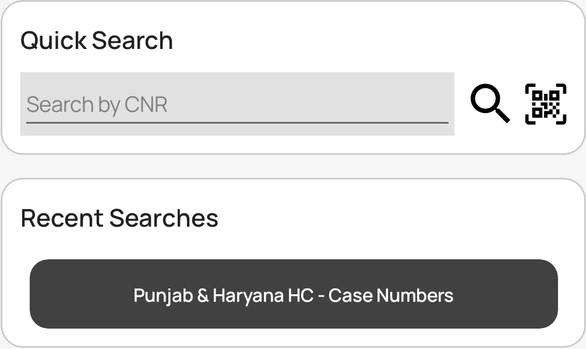
- Under Quick Search, type the 16-character CNR number of the case.
- Tap to search. The case opens in the search results.
- To scan instead of typing, tap and point the camera at the case QR code.
Your recent searches appear under Recent Searches. Tap one to run it again.
Search a court
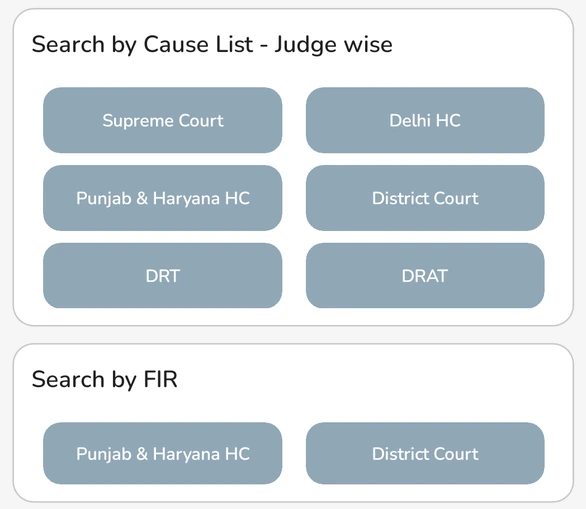
- On the Search tab, scroll to a Search by … card, such as Search by Case Number, Search by FIR, or Search by Cause List.
- Tap the court you want to search.
- Fill in the search details and tap Search.
The search types and courts available depend on your account, and new courts and tribunals are added over time. Searching cause lists depends on your plan.
If nothing happens
- Check that the CNR has all 16 characters. A shorter number is not searched.
- If scanning does not start, allow camera access for Court Assistant in your phone settings.