Sign in
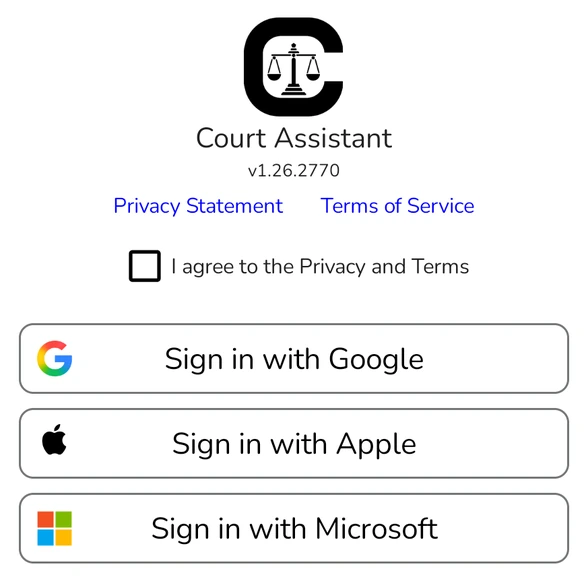
- Open Court Assistant.
- Read the Privacy Statement and Terms of Service using the links on the screen.
- Tick I agree to the Privacy and Terms.
- Tap the button for the account you want to use: Sign in with Google, Sign in with Apple or Sign in with Microsoft.
- Choose or enter your account on the page that opens. Court Assistant then opens signed in.
If you tap a sign-in button without ticking the box, Court Assistant asks you to read the Privacy Statement and Terms of Service first.
After your first sign-in you may see Complete your profile. Enter your City and State (your name and mobile number are optional) and tap Save, or tap Not now to do it later.
Create your first folder
- Open the Cases tab.
- Tap in the top toolbar.
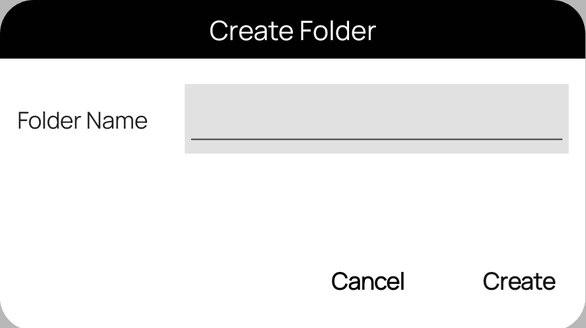
- Enter a Folder Name, for example your court or a client group, and tap Create.
Add your first case
- Tap the new folder to open it.
- Tap Add Case in the top toolbar.
- Choose the court, how to search, and enter the case details.
- Tap Add. The case appears in the folder, and it shows on the home screen on the dates it is listed.